




I have an app now. Still feels a little strange to say.
It’s where your Briana K patterns live, so instead of hunting through your downloads folder for a PDF, you open the app, and it’s just there. It also has a set of free crochet tools: the yarn amount calculator, the stash inventory, the blanket size calculator, and the time estimator. And a free games section, for when you’re stuck in a waiting room with no hook.
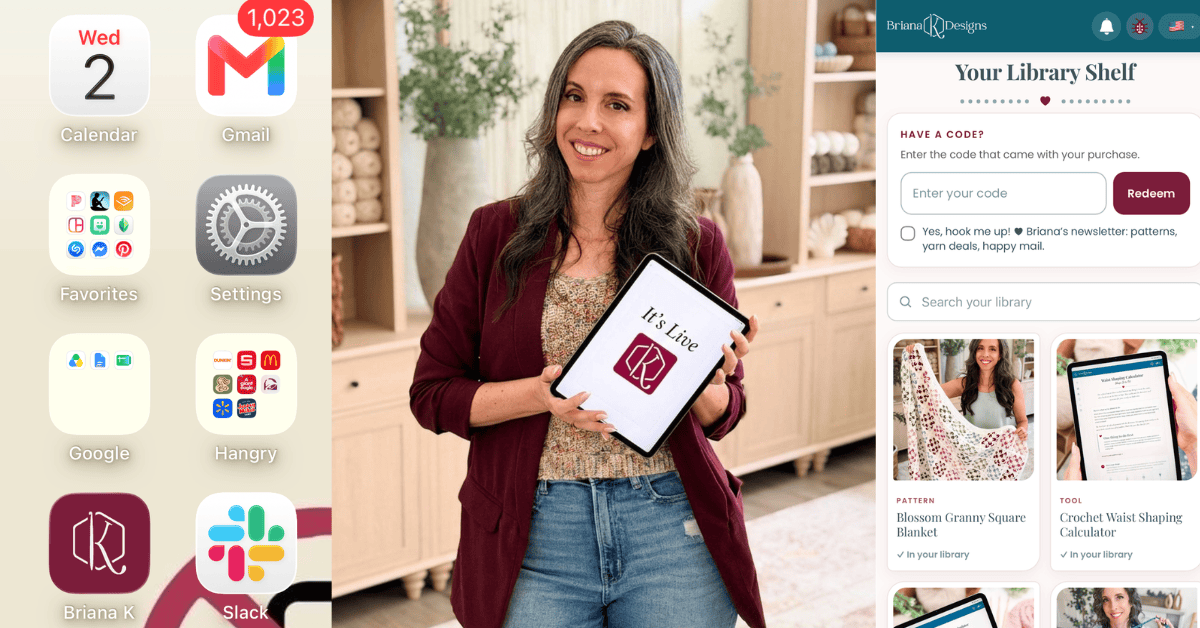
Quick heads up, because I don’t want you thinking something went wrong. There’s no App Store step. It installs right from your browser, and I promise that’s a real thing and not me asking you to do something sketchy on the internet.
One link, two taps, icon on your home screen. It’s free, and you can delete it any time by pressing and holding it like anything else.
Steps for every device are below, with a screenshot of every screen, so you can match what you’re looking at to what’s on the page.
Join The Kindest Community
Join our vibrant community of crafters on Facebook today. Whether you enjoy crafting with others or simply have burning questions, we’ve got you covered – join us now!
First, the part nobody explains
This isn’t a download. Nothing installs onto your phone the way a game or a banking app does. Your browser saves a shortcut with its own icon, and that icon opens the app full screen with no address bar in the way. It looks like an app because it’s behaving like one.
That means a few nice things. It updates itself, so there’s never a version to check or a download to run. It takes a fraction of the space a normal app takes. And most of it keeps working when you lose signal.
It also means one catch. Because the install happens in your browser, it has to be your real browser. If you tap a link inside Instagram or Facebook, those apps open the page in their own little built-in browser, and that one can’t install anything. Further down, there are steps to get you out of it in two taps.
Which one am I?
If you’re not sure which set of steps belongs to you, this sorts it out.
- iPhone or iPad is anything made by Apple that you hold in your hands.
- Android phone or tablet is a Samsung, a Google Pixel, a Motorola, or most others.
- Windows computer is a laptop or desktop that isn’t an Apple.
- Apple computer is a MacBook or an iMac.
- Chromebook follows the Windows steps exactly.
Start here first. Open https://stitch.brianakdesigns.com in your browser, then find your device below.
On an iPhone or iPad
Six steps in Safari. Step three is the one nearly everybody misses.
Step 1. Open the link in Safari
Safari is the blue compass icon that came with your iPhone. Type stitch.brianakdesigns.com into the address bar, or copy the link and paste it in.
Wait for the sign-in page to finish loading before you do anything else. If you install while the page is still loading, you can end up with a blank icon.
Don’t tap the link from inside Instagram or from your email.
Copy it and paste it into Safari instead. If you already tapped it, skip down to the Instagram section, then come back here.
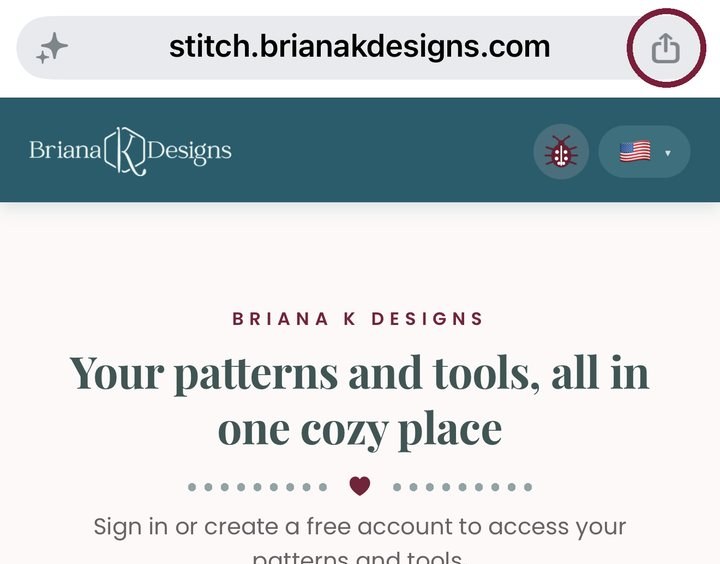
Step 2. Tap the Share button
The Share button is the little square with an arrow coming out of the top. It sits at the right end of the address bar.
If your address bar is at the bottom of your screen instead of the top, the Share button is in the middle.
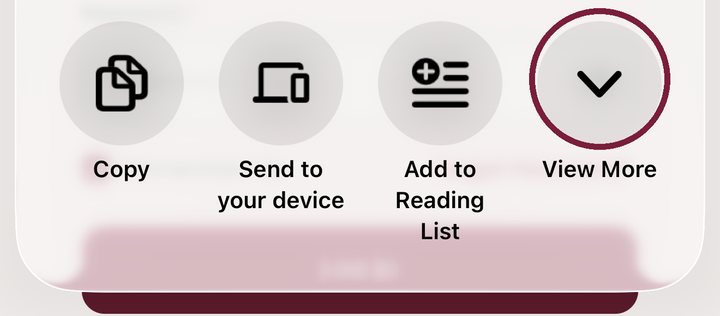
Step 3. Tap View More
This is the one that trips everybody up, so read it twice.
The menu that slides up opens in a short version, and Add to Home Screen isn’t in the short version. You have to open the full menu first.
Look at the row of round buttons. On the far right, there’s one called View More with a down arrow. Tap that.
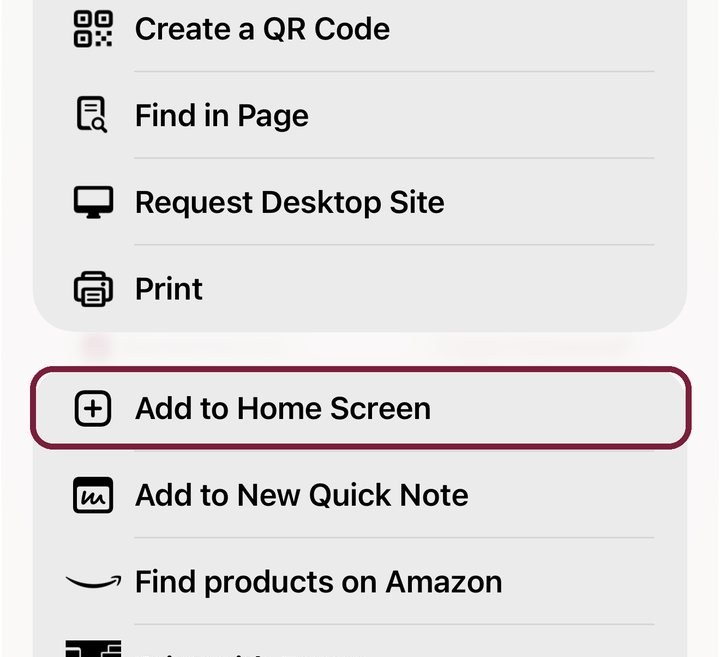
Step 4. Scroll down and tap Add to Home Screen
The full list is long. Keep scrolling. Add to Home Screen sits in the second group of options, just underneath Print.
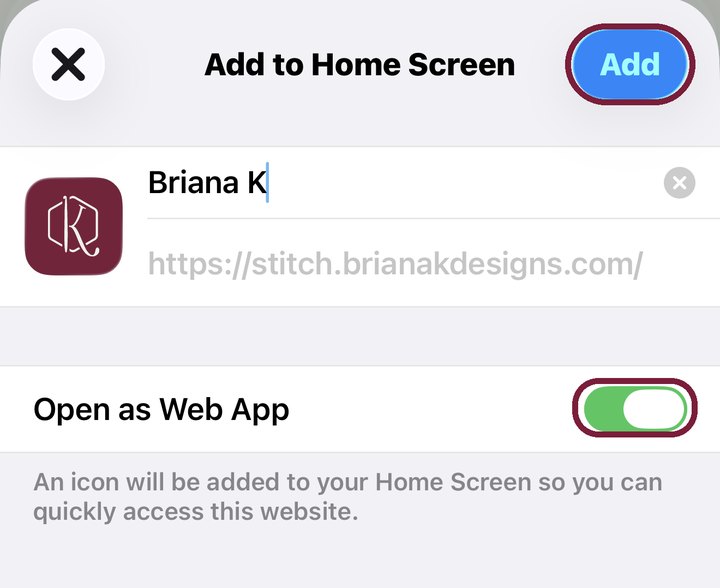
Step 5. Leave Open as Web App on, then tap Add
A small box opens with the name and web address. Two things to notice.
- Open as Web App should be switched on and green. That green switch is what makes the icon open full screen instead of dumping you back into Safari. Leave it alone.
- You can rename it here if you want. The name is already highlighted, so you can type straight over it.
Then tap Add in the top right corner. That’s the last tap.
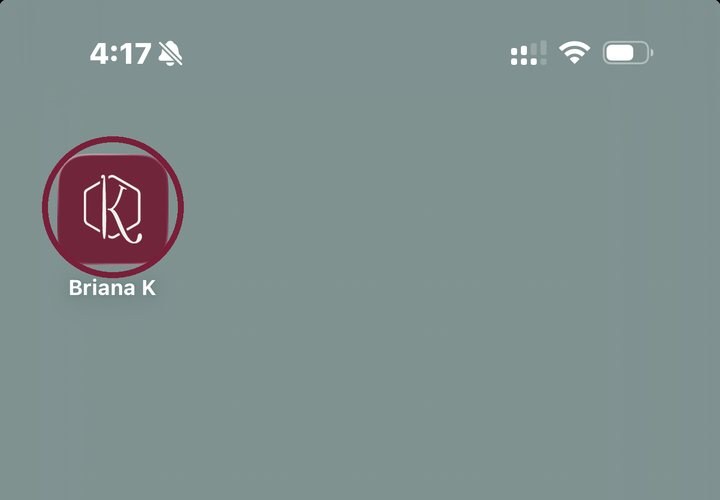
Step 6. Close Safari and look at your home screen
The icon is there. New icons land on your last home screen page, so if you don’t spot it right away, swipe left until you run out of pages.
WHICH BROWSER WORKS ON AN IPHONE
- Safari. Yes, always. This is the one I recommend.
- Chrome. Yes on newer iPhones. Same Share button.
- Edge. Yes on newer iPhones. Same Share button.
- Instagram. No. It opens a mini browser with no install option.
On an Android Phone or Tablet
A few taps, and Android often offers to do it for you.
Step 1. Open the link in Chrome
Chrome is the round icon with red, yellow, green, and blue. Go to stitch.brianakdesigns.com and let the page finish loading.
Step 2. Watch for the Install app bar
Android is helpful here. A bar often slides up from the bottom of the screen that says Install app. If you see it, tap it and skip to Step 4.
If you swiped that bar away once already, it may not come back. That’s fine. Use Step 3 instead.
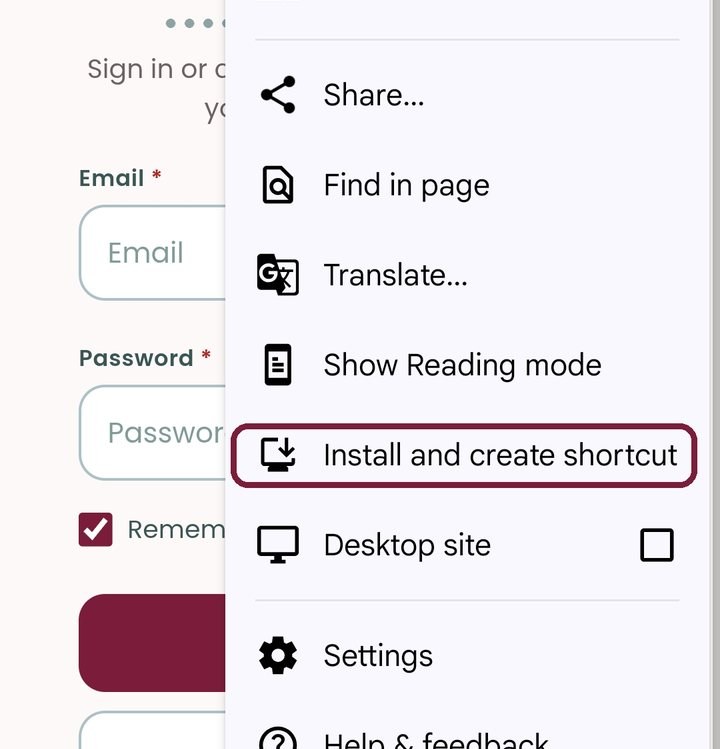
Step 3. Tap the three dots, then tap Install and create shortcut
The three dots sit in the top right corner. Tap them, then scroll down the menu. Install and create shortcut sits below Show Reading mode and above Desktop site.
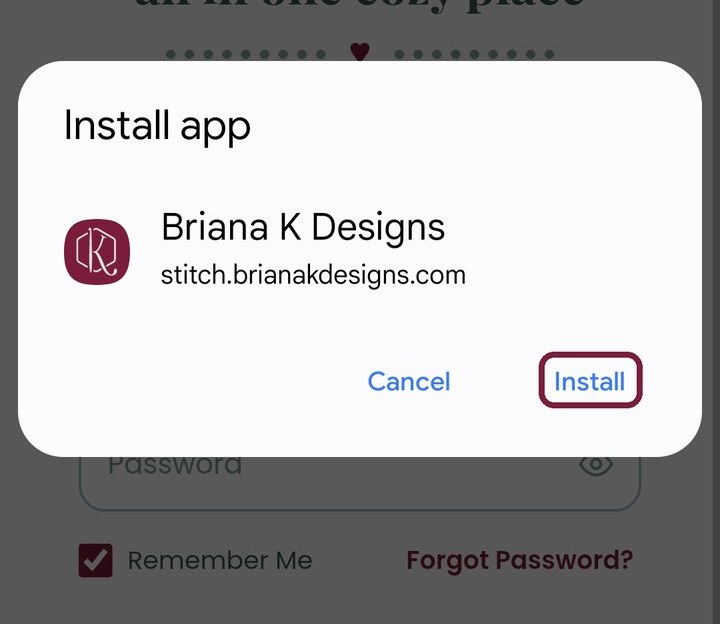
Step 4. Tap Install
A small box appears. Check that it says Briana K Designs, then tap Install.
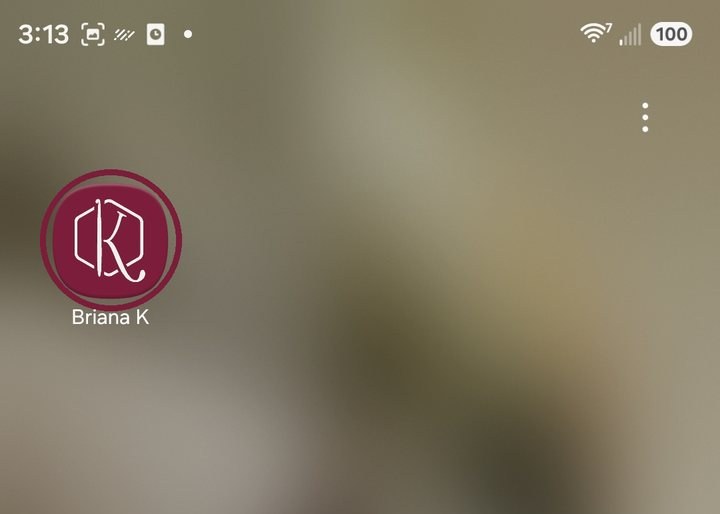
Step 5. Find it on your home screen
The icon is on your home screen and in your app drawer. On Android, it sits right alongside your store apps, so you can also find it by searching your phone the same way you search for anything else.
IF YOU USE A DIFFERENT ANDROID BROWSER
- Chrome. Three dots in the top right, then Install and create shortcut.
- Samsung Internet. The install icon in the address bar, or the menu lines at the bottom right, then Add page to, then Home screen.
- Edge or Brave. The menu, then Add to phone or Add to Home screen.
- Firefox. Three dots, then Install.
On a Windows Computer
It becomes a real program in your Start menu, with its own window.
Step 1. Open the link in Chrome or Edge
Go to stitch.brianakdesigns.com and let it load.
Step 2. Click the install icon in the address bar
Look at the right end of the address bar for a small icon that looks like a little monitor with an arrow pointing down into it. It sits just to the left of the star. Click it, then click Install.
The star only bookmarks the page. It’s not the one you want.

No install icon at all?
In Chrome, click the three dots at the top right, then Cast, save and share, then Install page as app. In Edge, click the three dots at the top right, then Apps, then Install this site as an app.
Step 3. That’s it
It opens in its own window with no address bar, and it lives in your Start menu from then on.
To keep it close at hand, find it in the Start menu, right-click it, and choose Pin to taskbar.
On an Apple Computer
There are two ways to do this. Safari is quicker. Chrome takes one extra drag at the end.
The Safari way, which is easier
Step 1. Open stitch.brianakdesigns.com in Safari.
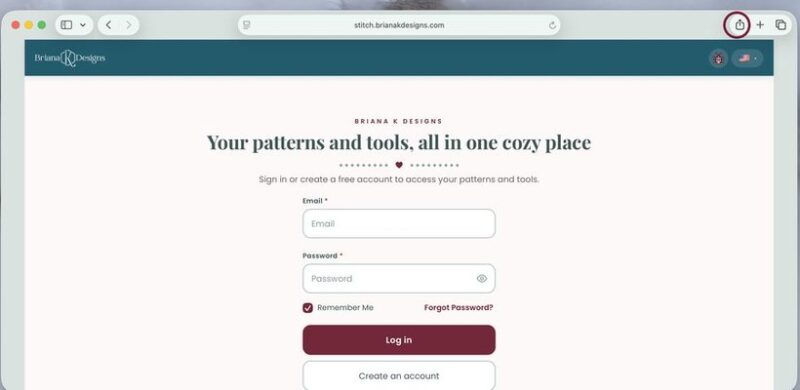
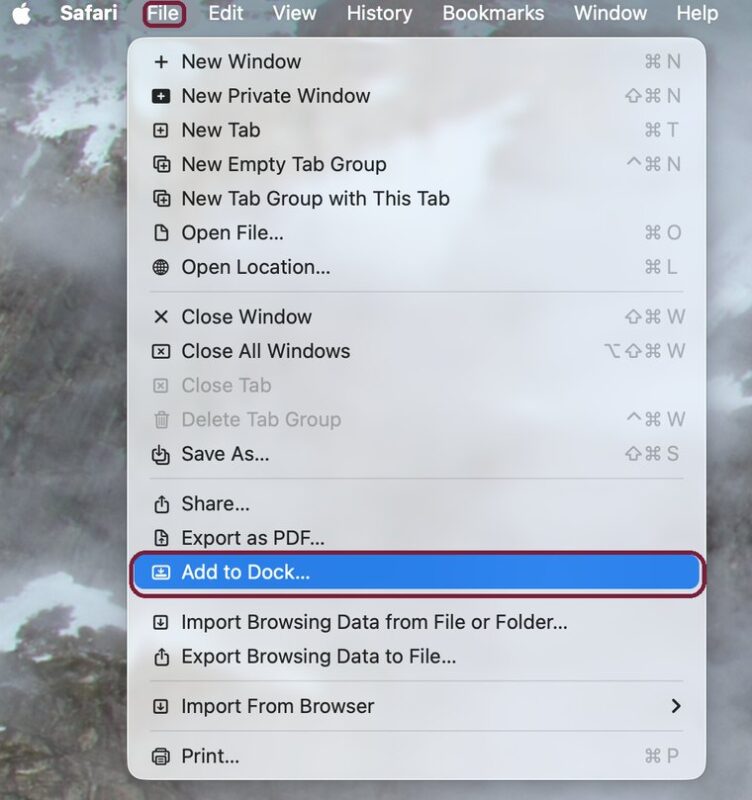
Step 2. Click File in the menu bar at the very top of your screen, then click Add to Dock.
That’s the menu bar running along the top edge of your whole screen, not anything inside the Safari window. Add to Dock sits under Export as PDF and above Import Browsing Data.
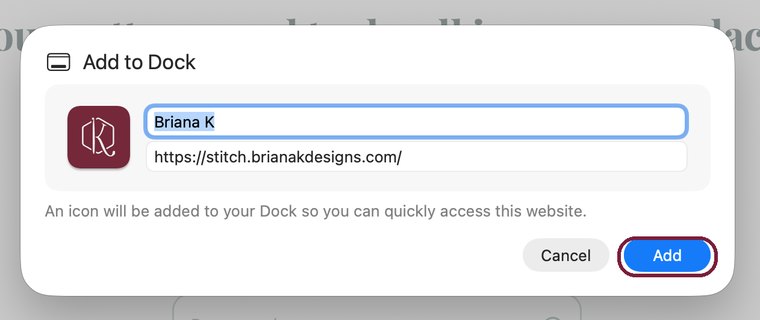
Step 3. Check the name, then click Add. The name is already selected, so you can type straight over it if you want to change it.
Done. The icon is in your Dock.
No Add to Dock in your File menu?
Your Mac is on an older version of Safari. Use the Chrome steps just below instead. They get you to the same place.
The Chrome or Edge way
Same result, but the icon gets filed into a folder first, so you only need one drag at the end.
Step 1. Open stitch.brianakdesigns.com in Chrome.
Step 2. Click the install icon at the right end of the address bar. It’s the little monitor with an arrow pointing down into it, sitting just left of the star. The star only bookmarks the page.
Step 3. Click Install.
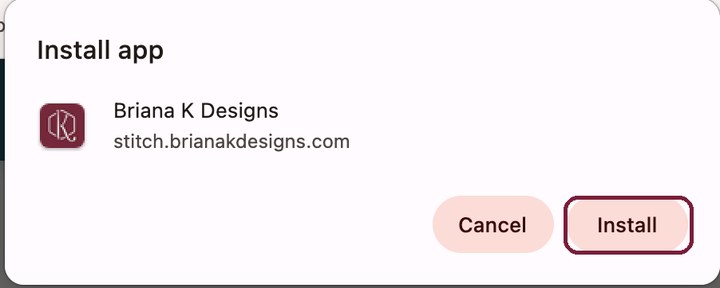
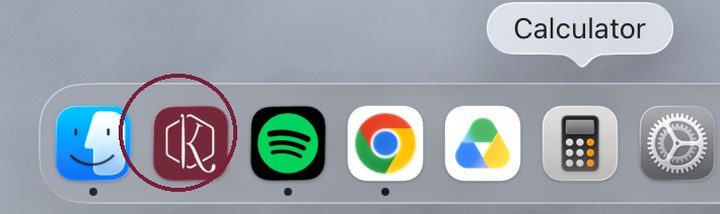
Step 4. It opens in its own window, and a copy gets filed in Launchpad inside a folder called Chrome Apps.
That folder is the reason it feels like the app vanished. It didn’t. It’s tucked one level down.
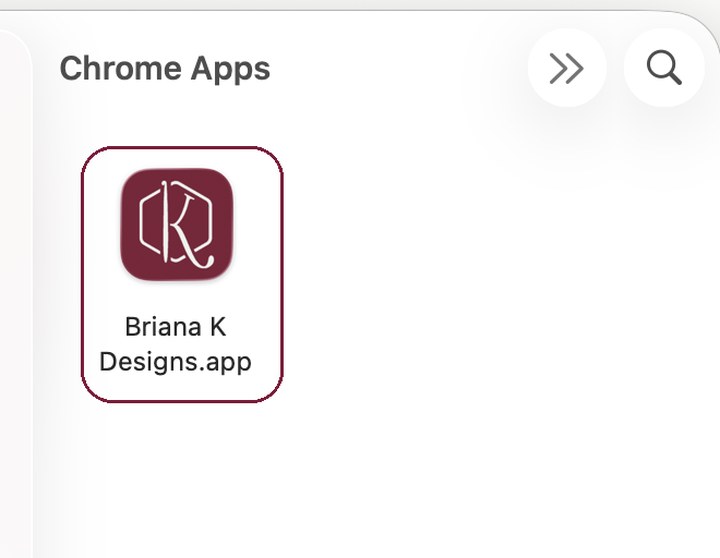
Step 5. To keep it handy, drag the icon out of that folder and drop it onto your Dock. Drop it wherever you like along the bar and the other icons will slide over to make room.
Chromebooks and Tablets
- Chromebooks follow the Windows steps exactly.
- Android tablets follow the Android steps.
- iPads follow the iPhone steps, except the Share button is in the top-right corner of the screen.
If You Opened This From Instagram or Facebook
Two extra taps and you’re back on track. Facebook, Pinterest, and your email app all work the same way.
When you tap a link inside Instagram, it opens in Instagram’s own little browser. It looks like a browser, and it acts like one, but it can’t install anything. You have to hand the page over to your real browser first.
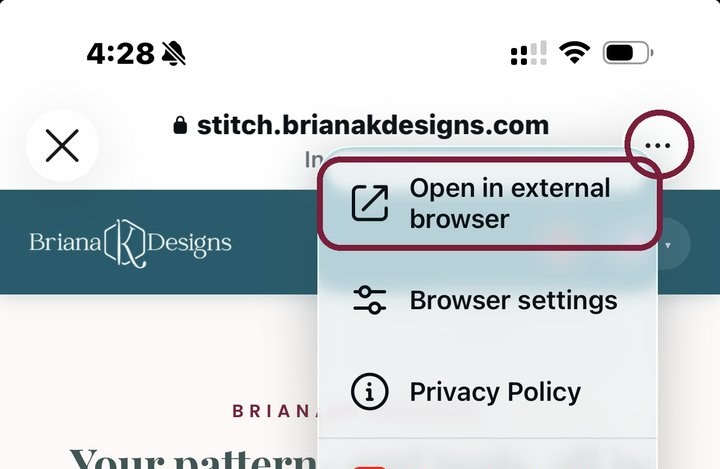
Step 1. Tap the three dots, then tap Open in external browser
The three dots are in the top right corner. Tap them, then tap Open in external browser.
Not the X. The X just closes the page and drops you back into your feed.
Step 2. Check that it worked
The page reopens in Safari. You’ll see a small Instagram arrow in the top-left corner, which shows you’ve made it out.
If you’d rather not do this every time, save the link in your notes or your bookmarks and open it from there instead.
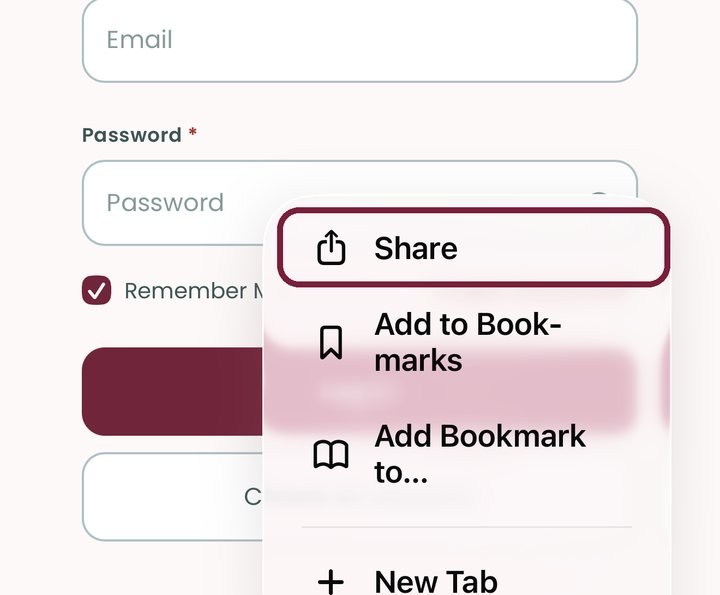
Step 3. Open the Safari menu and tap Share
Share sits right at the top of that menu.
If your Safari shows a Share button directly in the address bar, tap that instead and skip ahead.
Step 4. Carry on with the regular iPhone steps
From here it’s exactly the same as before. View More, then Add to Home Screen, then Add.
On Android it’s the same idea.
Tap the three dots in Instagram’s browser and choose Open in Chrome or Open in external browser, then follow the Android steps.
Something Isn’t Working
Nine times out of ten it’s one of these six.
I don’t see Add to Home Screen anywhere
On an iPhone, you probably haven’t tapped View More yet. The share menu opens in a short version that leaves out the install option. Tap the round View More button with the down arrow, then scroll down. It’s below Print.
If you have done that and it’s still missing, you’re in a mini browser. Tapping a link inside Instagram, Facebook, Pinterest, or an email app opens a stripped-down browser that can’t install anything. Follow the Instagram steps to hand the page over to Safari.
I’m on an iPhone, and it’s still not showing up
Private browsing hides the option. Close your private tab, open a normal one, and go to the link again.
It’s also worth double-checking that you’re in Safari (the blue compass icon), not a different browser that came on the phone.
I tapped the icon and got a blank white screen
The page had not finished loading when you installed it. Press and hold the icon, delete it, then go back to the link in your browser, let it load all the way through, and add it again.
Will it use up my storage or my data
Barely any storage. It’s a fraction of the size of a normal app.
It needs internet the first time you open it, and after that most of it keeps working offline.
If you don’t open it for several weeks, your phone may quietly clear the saved files to free up room. The icon stays exactly where it is, and it reloads the next time you tap it.
How do I get updates, and how do I remove it
Updates happen on their own. Open it while you’re connected to Wi-Fi to get the newest version. Nothing to check, nothing to download, no update button to find.
To remove it, press and hold the icon and choose Delete, exactly like any other app. On a computer, right-click it in your Start menu or your Dock and remove it there.
My progress or my saved projects disappeared
Your work saves to the copy you installed. If you added the app twice from two different browsers, you now have two separate icons that do not talk to each other. Delete the one you’re not using.
Clearing your browser history or site data can also wipe saved progress, so try to avoid the Clear all option while you’re in the middle of a project.
Want These Steps on Paper?
The whole guide is available as a PDF you can download, print, and keep beside you while you work through it. Handy if you’re helping someone else get set up.
The rest of the free tools
Once the app is on your phone, these free tools are waiting for you.
- Yarn Swap finds the closest substitute yarn and how many skeins to buy.
- Yarn Amount Calculator works out how much yarn a project needs.
- Yarn Stash Inventory keeps track of every yarn you own, down to the dye lot.
- Blanket Size Calculator gives you blanket sizes and stitch counts for any gauge.
- Crochet Time Estimator tells you how long a project will really take.
- WIP Tracker keeps all your works in progress in one place.
- Stitch Keeper counts your rows and stitches and saves your place.
Need a quick break? play Tangled, Yarn Shuffle, Just One More Row, Loose Ends, and Wind Up free right here on the blog.
More Crochet Goodies To Love
A game, tools, patterns, tutorials. It’s all here!
🥂 Cheers, and happy crocheting!

What should you make next?
Keep the hook movingReaders Are Loving


 Split Single Crochet
 Tunisian Simple
 Wheat Stitch Tutorial
 Stacked Single Stitch